Thanks for the video...
You have (as I tried to explain before) enabled the "Cartwall As Track-Insert" option (see picture below, where it is disabled).
In this mode (when the 'Cartwall As Track-Insert' option is checked), the cartwall TalkOver button DOES NOT work as you expect.
In fact, the 'Cartwall As Track-Insert' option only inserts a cartwall track into the recording, but does not adjust any of its volume in real time as you moved the cartwall fader or clicked the TalkOver button.
As such, in that mode, you would have to manually attenuate the inserted cartwall track after your recording in the segue editor… not really what you want of course.
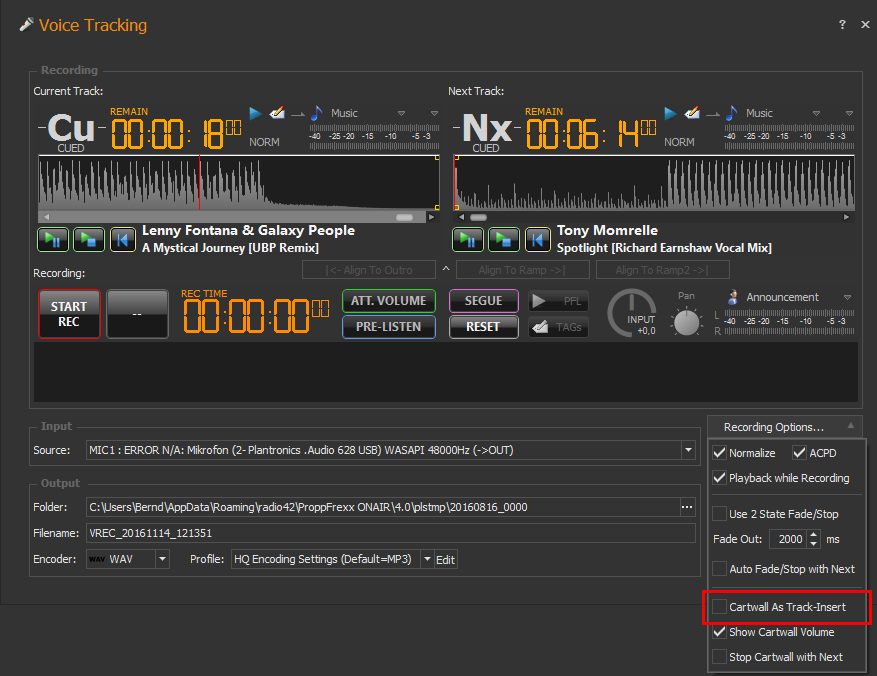
- Disable the "Cartwall As Track-Insert" option
- 1.png (73.56 KiB) Viewed 8981 times
To solve you issue you must uncheck the "Cartwall As Track-Insert" option !
BUT this also means, you need to adjust your mixer settings a bit.
1) I see, that you already have a mixer channel called “Cartw” – but it looks you don’t use it.
Make sure, that you also ‘route’ the ‘Cartwall II’ to that mixer channel – see the general settings, section ‘Routing’ and make sure you selected the ‘Cartw’ mixer channel for your ‘Cartwall II’ entry!
-> This will ensure, that whenever you play a cartwall II entry (like a one from the VoiceTracking) it is played out on that mixer channel.
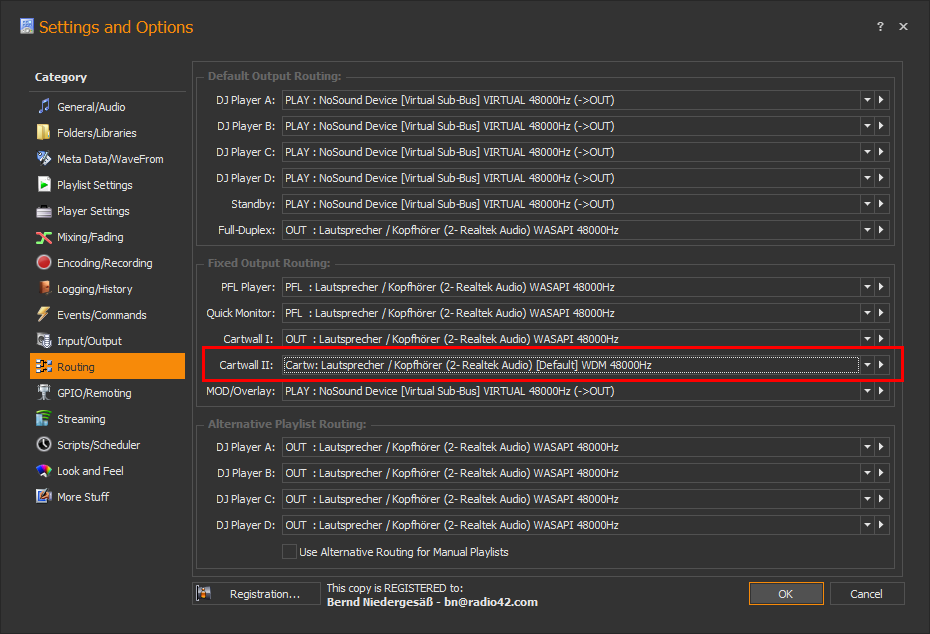
- Route the Cartwall II output to your 'Cartw' micxer channel
- 5.png (61.93 KiB) Viewed 8976 times
Optionally (in case you do not use an external mixer): When you make a double-click on the ‘Cartw’ name in the mixer, you can also edit the mixer configuration. E.g. you might now want to use the ‘Copy To’ option to also copy the signal to your ‘PLAY’ mixer channel (in case you use it also during regular playback).
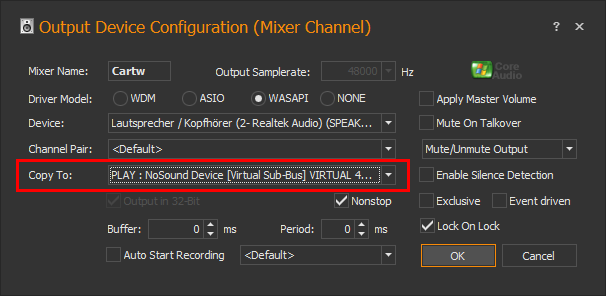
- Copy the output of your 'Cartw' mixer channel also to 'PLAY'
- 2.png (23.74 KiB) Viewed 8981 times
2) Now also make a double-click onto your MIC mixer input channel… and make sure you also select ‘Cartw’ for the ‘Output To’ option!
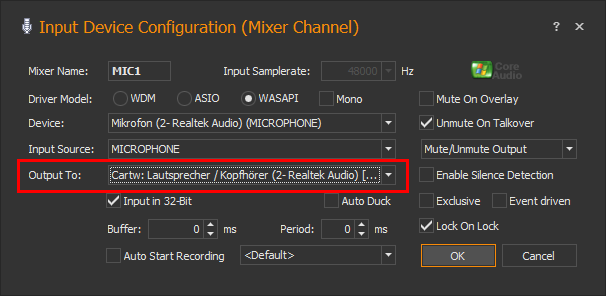
- Output your MIC input also to the 'Cartw' channel
- 3.png (22.3 KiB) Viewed 8981 times
3) What have you done now (up to here)?
a) You routed your Cartwall II (the one also used in the VT modeul) to play out at ‘Cartw’
b) You copied the signal of your ‘Cartw’ mixer also to your ‘PLAY’ mixer, so you hear it there as well
c) You output your ‘MIC’ mixer input also to your ‘Cartw’ mixer channel
(and as ‘Cartw’ is also copied to ‘PLAY’ you will also hear your microphone in the ‘PLAY’ channel)
The good thing now is, that the ‘Cartw’ mixer channel contains BOTH:
- your MIC signal AND
- your Cartwall II signal
4) As such, you can finally change your ‘Source’ within the Voice Tracking dialog to your ‘Cartw’ mixer channel.
Meaning you also record BOTH: your MIC and Cartwall II output together – live – as such, there is no need any more for the ‘Cartwall as Track-Insert’ option!
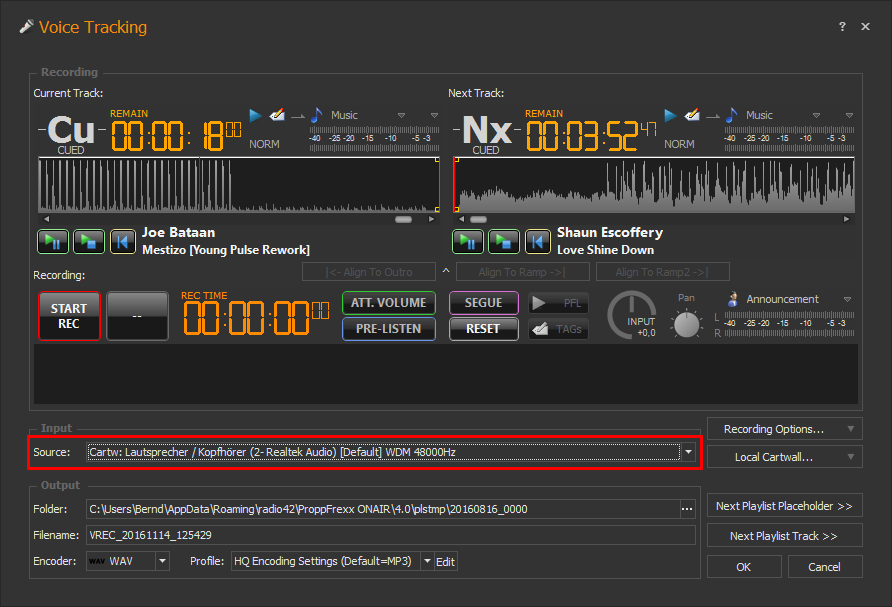
- Use the 'Cartw' mixer output channel as your VoiceTracking Source!
- 4.png (66.26 KiB) Viewed 8981 times
When you NOW press the Cartwall’s TalkOver button, the cartwall output signal is lowered and as such, the volume in your ‘Cartw’ mixer channel is lower and as you record this, all is already included in the ‘Cartw’ recording!
I hope this makes it a bit more clear
