Instead of a video I decided to publish a small walkthrough with images, as there are a few things to notice with scheduling streaming URLs.
The major difference when scheduling Streaming URLs instead of audio files is:
- a streaming URL has no defined lenght - i.e. it would plays indefinitely (unless it terminates prematurely)
- a streaming URL might end prematurely (e.g. in case of a network error or the server stops)
- a streaming URL has no defined start; nor any cue-points; thus no real 'Soft' transition to a next program is possible
Also remember:
- a script runs continuously until a new program is scheduled
- meaning all its script-lines are looped
- press the '?' icon at the very top right to get detailed help about any options.
How does a script execute when the Program is started?
- a new playlist is created (by default with 3 DJ Players)
- now the related script is executed and the playlist is scheduled with entries from the script
- this, so that all 3 DJ Players are loaded with tracks and N number of unplayed tracks are in your playlist
(this according to the 'Playlist Look Ahead' option in your general settings, section 'Scripts/Scheduler')
- this also means, that yes NOT ONLY your URL will be scheduled, but also additional tracks are scheduled
- in case your script only contains a single script-line - this also would mean, that this single entry is looped and scheduled multiple times!
At this point you got stuck and said:
I don't want this!
But wait a second and rethink: The concept is still good and you actually want this - belive me

What would happen, if the related URL is unavailable at the time it is scheduled?
What, if the server is e.g. down due to maintenance or whatever other reason?
In such an event you would want to play some else - don't you?!
I believe yes... and this is where the concept comes in handy...
See it like this:
At first the first script-line is scheduled and played - so in case all is perfect, this URL is played for the duration given.
But if the URL in script line is unavailable, then the other script-lines, the other tracks would be played...
As such you can see the 'other' script-lines as your emergency script-lines, just for the case when the initial URL is unavailable.
Your requirement was now to schedule a certain URL (
http://tunein.streamguys1.com/pandashowradio.mp3) ever Monday to Friday between 8am and 11am - which is 3 hours.
When we consider the above, a script to schedule this certain URL might look like this:
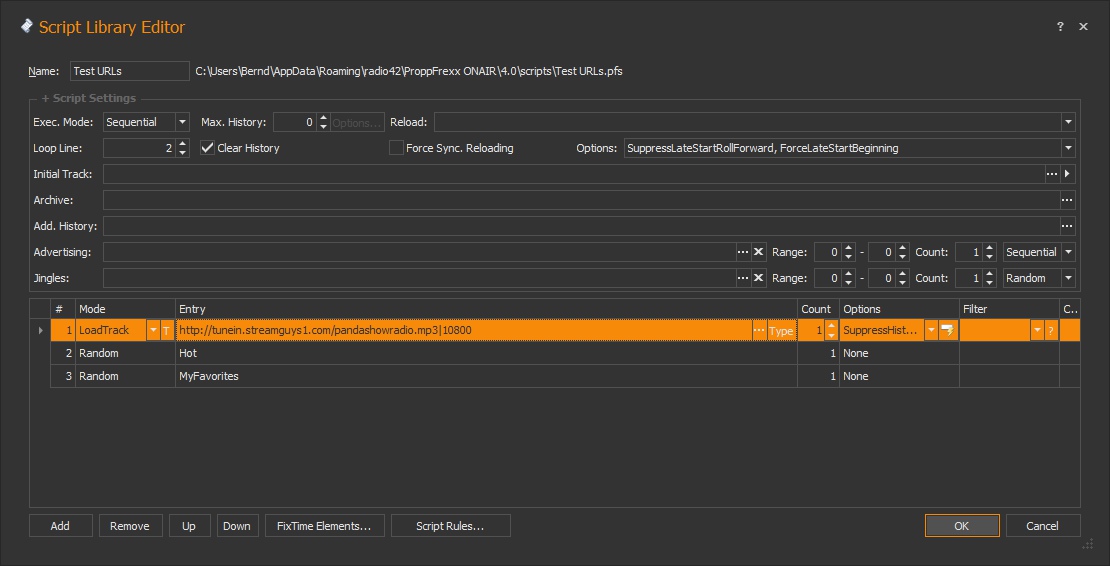
- URLScript.jpg (127.98 KiB) Viewed 12627 times
There are a few things set in the script which are important to notice...
The demo script consists of 3 script-lines. Only the first one contains the URL entry (LoadTrack =
http://tunein.streamguys1.com/pandashowradio.mp3|10800).
Remember to hold the CTRL key and click on the '...' button as explained in my previous post to define a URL entry here!
Note the number
10800 at the end of the script-line entry!
This defines the number of seconds to play the URL (see above, a streaming URL has no natural end, so we need to define it here).
10800 seconds are exactly 3 hours.
I then have defined some options with this script-line :
SuppressHistoryCheck, SuppressAddHistory, KeepStreamLoading, KeepStreamAlive
The first two options ensure, that the URL entry is not checked and added against our history - as otherwise it might be rejected - meaning for a URL it makes no sense to place or check it against any history.
The other two options (KeepStreamLoading, KeepStreamAlive) will ensure, that a reconnect is tried in case the stream is temporarily not available when loaded to a DJ Player.
The other sub-sequent script-lines are your emergency script lines. Meaning, the first (above) script-line will already play the URL for 3 hours - so if all is good, only this entry will effectively be played during your 3 hour program.
But the other script-lines are needed as explained above.
The global script
LoopLine value is set to 2:
The LoopLine parameter defines, that in case a script is looped (as more tracks are queried by the playlist in advance), it will NOT start with the first line again; but with script line number 2.
Here I used some local media libraries which contain some music tracks. In your case you should also create at least one media library with emergency music tracks.
As I explained above, when a new program starts, its playlist is scheduled with tracks from the script, so that all 3 DJ Players are loaded with tracks and N number of unplayed tracks are in your playlist. E.g. 6 tracks in total.
In our case (using the above script), this would now mean:
DJ Player A is loaded with the URL stream.
DJ Player B is loaded with a random track out of a media lib 'Hot'.
DJ Player C is loaded with a random track out of a media lib 'Favorites'.
Plus the playlist will contain a few more unplayed entries also with tracks out of 'Hot' and 'Favorites'.
Plus I defined the global script options
SuppressLateStartRollForward, ForceLateStartBeginning
These options just ensure, that in case you manually start your program late (e.g. because you just rebooted the PC) the script will always start with the first script line and never roll-forward in time.
That's it for the script. Now lets take a look to the related Program Scheduler entry:
(open the Program Scheduler from the 'Scheduler' ribbon underneath 'Schedulers')... then navigate to the desired time and right-click and select 'New Recurring Program..-'.
At first you specify your recurrence (Monday til Friday at 8am):
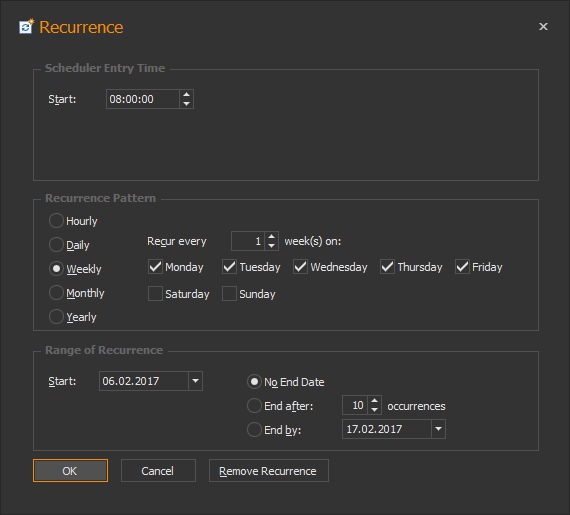
- MonFriRecurrence.jpg (49.74 KiB) Viewed 12627 times
Start is at 08:00:00
The pattern is Weekly recur every 1 week at Monday, Tuesday, Wednesday, Thursday and Friday; with No End Date.
Click OK and in the next dialog you define the actual Program Scheduler entry, e.g. like this:
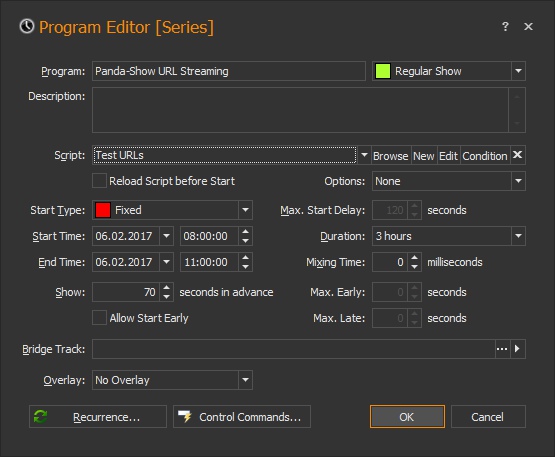
- URLProgram.jpg (67.77 KiB) Viewed 12627 times
Note, that for Script' you should select the script lib we just created above.
We are using a 'Fixed' start type in this example, meaning we start exactly at 08:00:00 (8am) and set the End Time to 11:00:00 (11am) - which also gives us a total duration of 3 hours - just like for the URL script-line.
That's it almost. The only option we might play with is the 'Mixing Time' value - see the '?' help for details.
Click OK to save.
Then close the Program Scheduler... and click on the 'Run Scheduler' ribbon button to activate the scheduler.